
eBooks
- Make sure that the Bibliographic file you are going to upload to Millennium has been downloaded onto your computer where you will be able to find it.
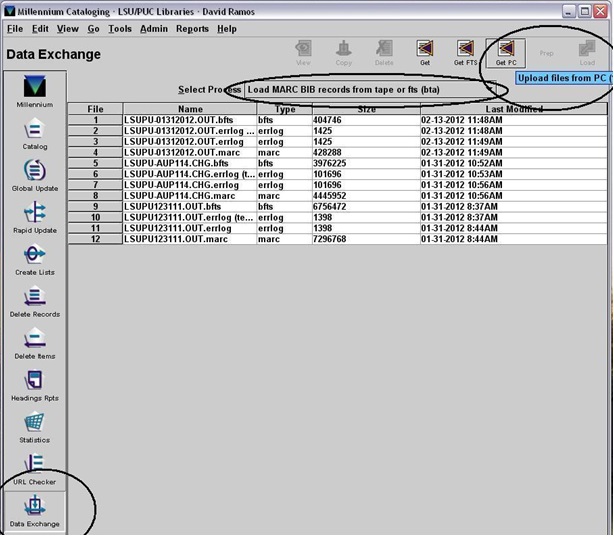
- Inside Millennium Catalog Client, Data Exchange.
- Select Process, Load MARC BIB records from tape or fts (bta). This tells us that we will be loading a Bibliographic file of records to the system.
- Next, select, “Get PC”, (Upload files from PC).
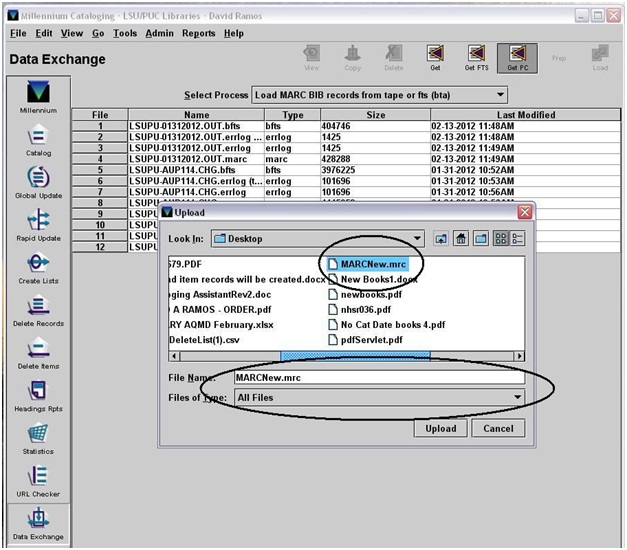
- A new window appears where you will find and select the file needed for upload into system.
- Select the file and click “Upload”.
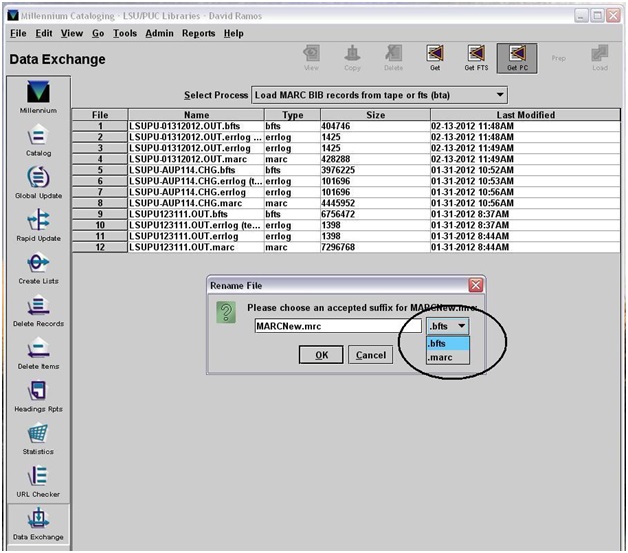
- After clicking “Upload”, a new window will appear asking you to select a suffix for the new file.
- Select “.bfts” and click “OK”.
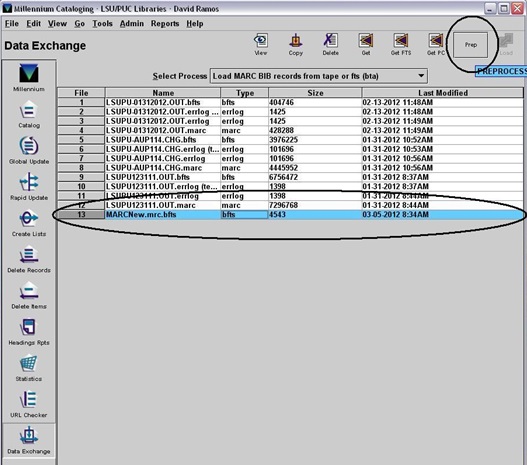
- A new file has now been generated on your list of files to be loaded into the Millennium system.
- Select your new file, so that it is now highlighted and select “Prep.”
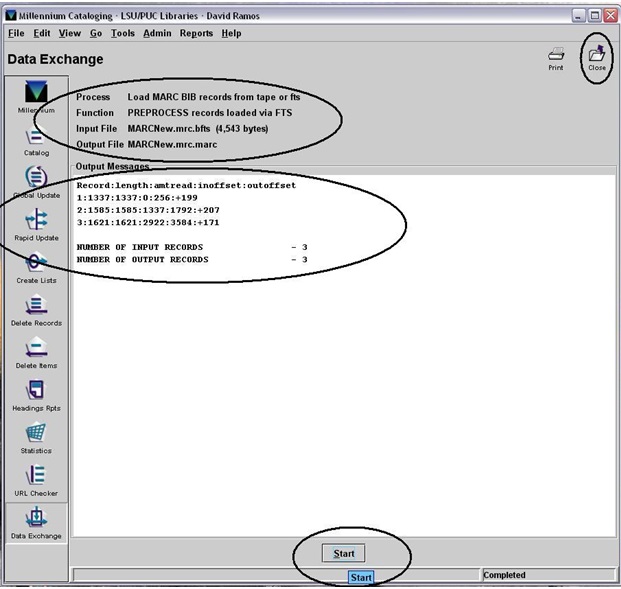
- A new window has now appeared, the Output Messages window will be blank until you select “Start”.
- Note that the information at the top matches and give information about the file you are about to process.
- Click on the “Start” button, and watch the Output Messages scroll the information of the Bibliographic files you are processing.
- When the processing is complete, you may close the page you are on.
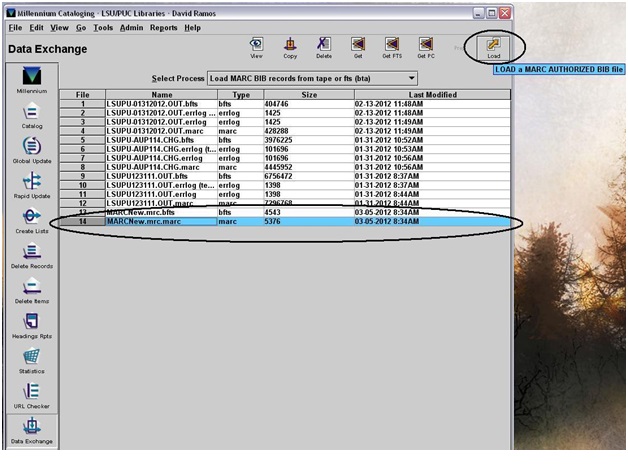
- Note that a new file has now appeared on the “Data Exchange, MARC BIB” Loading page.
- Highliging the new file, Click on the “Load” button.
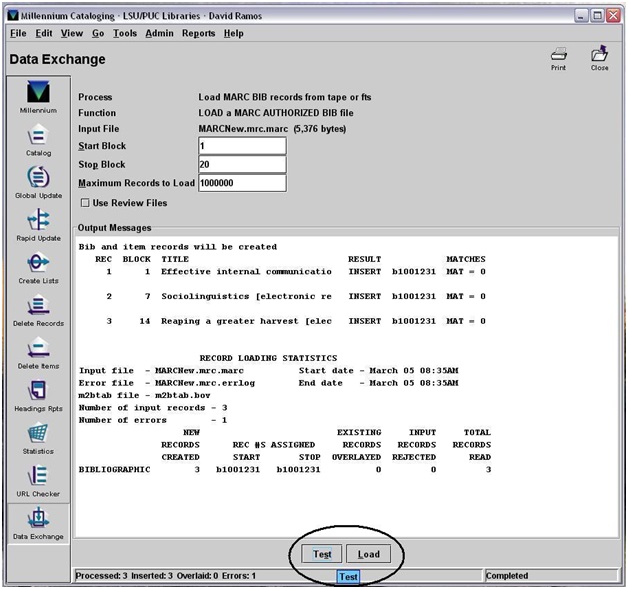
- A new window will appear.
- “Output Messages” will be blank until you select either “Test”, or “Load”.
- I recommend “Test” prior to “Load” to ensure the correct file has been selected and that nothing untoward will happen with your final upload.
- “Output Messages” will scroll with the “Test” or “Load” information after you have selected either.
- Your file Upload is now complete. Note however that the processing of Ebrary, Netlibrary and other files is not over.
- The file you have loaded into Millennium are Defaulted into the “smain” Bibliographic Location code, and a Material Type of “Printed Mat”.
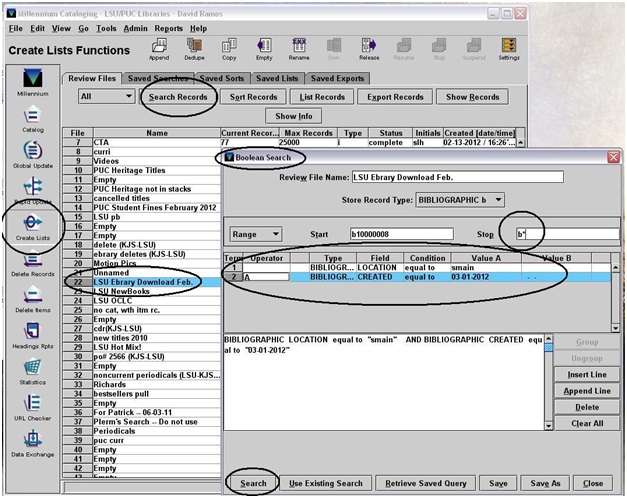
- To change these discrepancies you will need to enter the “Create Lists” function of the Cataloging module.
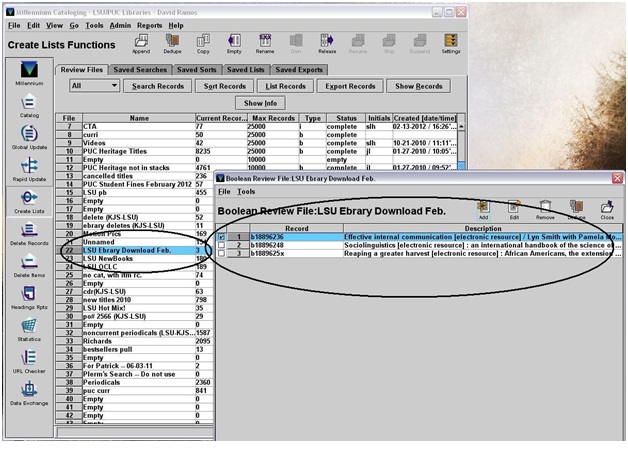
- In the “Create Lists” module, select and empty or designated field for your list search. And select “Search Records”, a new window with a Boolean Search options will appear. Enter the search parameters that will help you find your newly created bibliographic marc records. The above is what we currently use to find new Ebrary records to be processed with Create Lists.
- Note the fields of “Location”, “Created” and “date”. The Range is set for all known bibliographic files in system.
- Once your search is complete, you will have records to look at.
- From here you have several options, you may proceed to change each record individually, or use “Global Updates” to continue processing your records.
- Let’s continue with a single record that needs updating.
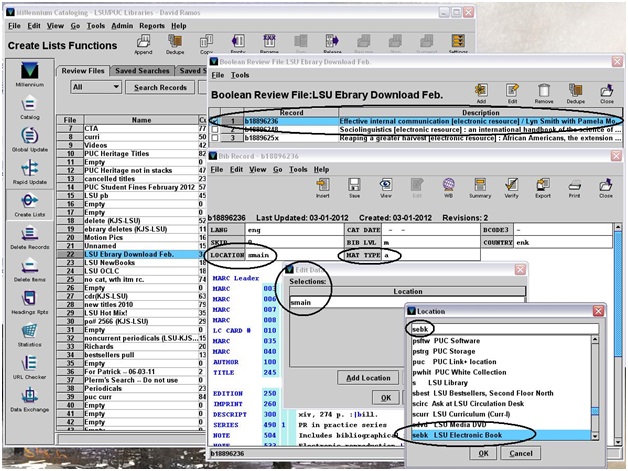
- Selecting a record to update, a new window will appear showing the Bib Record. Note that the Location and Mat Type are incorrect for this Ebrary (electronic) record.
- Double click on the Location field to change. An “Edit Data” window will appear, double click the incorrect location and select the correct one from the new drop down menu. Click “OK”.
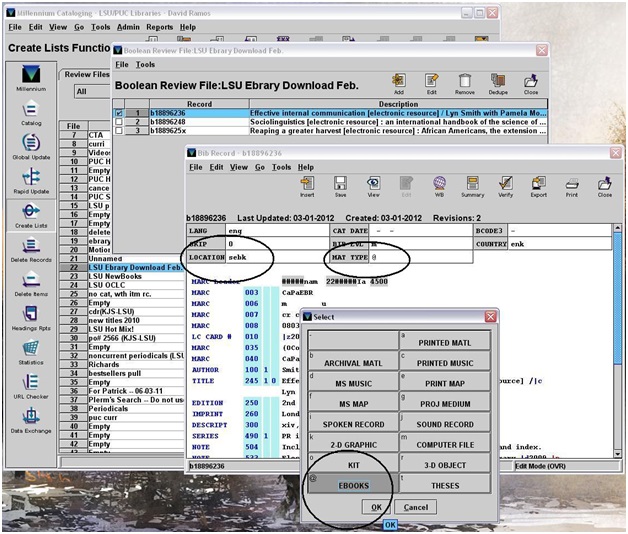
- To change the Mat Type from “a” (printed material) to &ldquo@;” (Ebooks) double click in the Mat Type field and select the correct option as seen below. Click “OK” when ready.
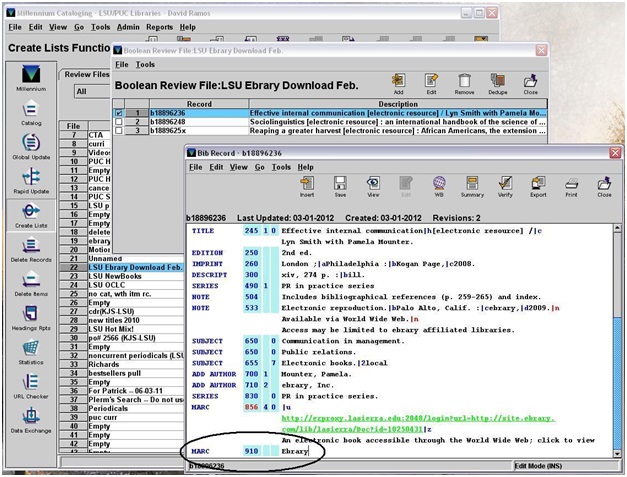
- For La Sierra University Library Ebrary record cataloging search purposes we include a “Marc, 910 field” on all electronic bibliographic records.
- To input this “910” field, select an open white area on the Bib Record and push the “Enter” key. A new line will appear with blank zones.
- Push “y” for “MARC” in the field column.
- Enter “910” in the “Tag” field, and skip past the indicator fields.
- Input “Ebrary7rdquo; or as needed for description of record.
- This is done so we may use this as a searchable field while working in Boolean search. (Makes life easier with this added information.)
- Make sure to “Save” (ctrl+s) when you are finished editing.